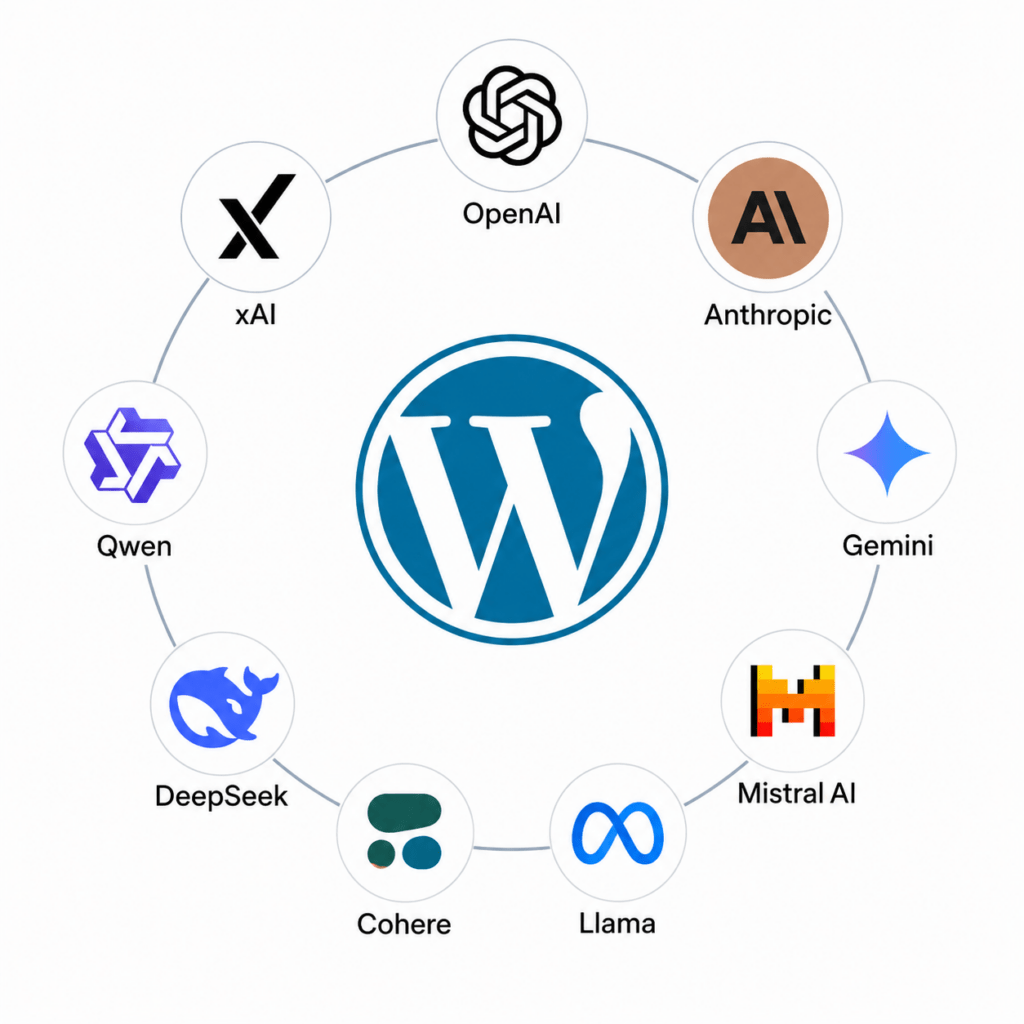
AI Ready helps WordPress publishers prepare their content for AI systems by delivering clean, structured Markdown and providing tools to curate the content they want AI systems to discover.
Unlike a traditional HTML page, which contains navigation, styling, scripts, advertisements and other elements designed primarily for human visitors, Markdown provides a simplified representation of the page’s actual content.
AI Ready gives you control over that representation.
You can curate the Markdown for individual pages and posts, while also curating your site’s llms.txt file to guide AI systems toward the content you consider most valuable.
AI Ready has two levels of curation
Two levels of editorial control
AI Ready combines automation with human curation at two levels.
Page level: You curate the Markdown representation of individual pages directly in the WordPress editor.
Site level: You curate your llms.txt file to determine which content you want AI systems to discover and prioritize.
Meanwhile, AI Ready handles the repetitive technical work—including converting the content to Markdown and adding structured frontmatter automatically.
That gives you a very clean product proposition:
AI Ready automates the technical work while giving publishers editorial control over both what AI systems discover and what they receive.
I think that sentence is strong enough that I’d consider making it one of the core positioning statements on the website, not just something buried in the documentation.
Curate your Markdown
AI Ready automatically converts your WordPress content into Markdown, giving you a starting point rather than requiring you to create the Markdown from scratch.
You can then edit and refine that Markdown before it is delivered to AI systems.
Remove content that isn’t useful to an AI system, such as:
- Navigation
- Repeated content
- Promotional material
- Decorative elements
- Unnecessary boilerplate
Keep the content that communicates the substance of the page.
The goal isn’t simply to convert HTML to Markdown. It’s to give publishers editorial control over the Markdown that AI systems receive.
Curate your llms.txt
At the site level, AI Ready lets you determine which pages and posts should be included in your llms.txt file.
Rather than treating llms.txt as a complete sitemap, use it as a curated guide to your site’s most valuable content.
Prioritize content such as:
- Pillar pages
- Documentation
- Tutorials
- Product pages
- Service pages
- FAQs
- Reference material
- Evergreen content
Avoid using it to highlight low-value or repetitive content such as search results, tag archives, duplicate URLs and other pages that don’t help AI systems understand your site.
Getting started with AI Ready
1. Configure your site
Open the AI Ready settings in WordPress.
From there you can configure the types of content available for AI delivery and provide basic information about your site.
You can also configure how your llms.txt file is organized.
2. Choose your content
AI Ready works within the familiar WordPress editing environment.
When editing a page or post, you can determine whether that content should be included in your llms.txt file.
This gives you control over what AI systems are encouraged to discover.
3. Curate your Markdown from the WordPress editor
AI Ready automatically converts your page or post into Markdown. The generated Markdown is then available directly within the WordPress page editor, where you can review and curate it alongside the original content.
You can remove unnecessary content, refine the structure, or make other editorial adjustments before the Markdown is made available to AI systems.
This means you aren’t simply accepting an automated conversion. You have control over exactly what AI systems receive from each page.
AI Ready automatically adds frontmatter
AI Ready automatically adds frontmatter to each Markdown document. You don’t have to create or maintain this metadata manually.
The frontmatter provides AI systems with important context about the content, including information such as:
- Title
- Publication and modified dates
- Canonical URL
- Categories
- Other relevant page attributes
This creates a consistent, machine-readable description of the content while keeping the process automated.
Organizing your llms.txt
Your llms.txt file should represent the content you want AI systems to find—not necessarily everything published on your website.
AI Ready uses your WordPress content structure to help organize the file into logical sections.
Descriptions associated with your content are also important. A good description gives an AI system useful context about a page before it decides whether to retrieve it.
Think of llms.txt as a curated table of contents for your website.
Markdown isn’t right for every page
Markdown is particularly useful for pages where the primary value is textual content.
However, some pages contain information that is better communicated through HTML and structured data.
For example, a product page may contain detailed Schema.org information about:
- Price
- Availability
- Product variations
- Ratings
- Specifications
In these cases, the HTML representation may contain valuable machine-readable information that shouldn’t be discarded simply to produce a simpler Markdown document.
AI readiness isn’t about converting everything to Markdown. It’s about giving AI systems the most useful representation of your content.
Review before you publish
AI Ready gives you the tools to make the final editorial decisions.
Before publishing, review both your Markdown and your llms.txt file.
Review your Markdown
- Does it contain the primary content?
- Have unnecessary elements been removed?
- Are headings and structure clear?
- Is the content focused on the page’s subject?
- Does the frontmatter accurately describe the page?
Review your llms.txt
- Are your most important pages included?
- Are the descriptions useful?
- Is the content organized logically?
- Have outdated or low-value pages been excluded?
- Does the file provide a useful overview of your site?
AI Ready puts publishers in control
AI systems are becoming another way people discover and consume information on the web.
AI Ready gives WordPress publishers a way to prepare for that change without giving up editorial control.
You decide:
What AI systems discover.
Through your curated llms.txt.
What AI systems receive.
Through your curated Markdown.
How that content is described.
Through structured frontmatter and contextual metadata.
That’s the core idea behind AI Ready:
Automation does the legwork. You make the editorial decisions.